


A kindergartner sits at a desk with a desktop computer and a handheld tablet before them. They have to decide which device makes sense for the assignment. This is the exact type of choice that happens in the Using Your Computer lesson. It is a fundamental moment in a childs development as a tech user. By forcing this decision, the lesson moves the child away from simply playing with whatever device happens to be nearby toward thinking about functionality.
In kindergarten computer science, we often assume that five-year-olds pick up tech skills by osmosis. They might know how to swipe a screen, but they rarely stop to ask if a laptop keyboard is the better tool for typing a list or if a touchscreen is better for a drawing project. This lesson introduces the idea that every piece of hardware is a tool with a purpose. It is a simple concept, yet it is foundational for the logic they will need in later grades when they start working with more complex file systems or creative software environments.
The importance of matching tools to tasks
The lesson covers the core concept of matching the correct hardware to a specific classroom task. It defines the difference between a device that helps you create and a device that helps you consume information. A student who learns this now is much less likely to be frustrated when they encounter a prompt that requires precise typing in second grade. If they struggle here, they spend their primary years fighting with the interface rather than focusing on their learning objectives.

When you teach choosing computer tools for kindergarten, you are actually laying the groundwork for digital citizenship. Students learn that their choices impact the speed and accuracy of their work. A screen is not just a glowing box of entertainment. It is a workspace. Getting them to see the difference between a desktop mouse and a tablet touch interface is the first step toward technological independence.
Aligning with state standards
This lesson is designed to meet CA.CS.K-2.CS.1, which asks students to select and operate computing devices that perform a variety of tasks accurately and quickly based on user needs and preferences. This is the California-adopted standard for computing systems. It represents a shift from passive interaction to active selection. Educators in Oakland Unified, Chula Vista Elementary School District, Linden Unified, and Los Alamitos Unified all use this standard to track how students move from basic operation to purposeful use of technology.
The standard is straightforward because it requires the student to prove they can operate the device to accomplish a goal. It is not about whether they like the color of the tablet. It is about whether the tablet is the right tool to record their voice, take a photo, or open a specific website. When a student can identify why one device is better than another for a given situation, they are meeting the core requirement of the standard.
Classroom management and implementation
You can use this lesson as a whole-class assignment during your scheduled computer time or as an independent study module for a student who missed the week of introduction to lab safety. It is also an excellent tool for a substitute day because the directions are clear and the objectives are self-contained. I recommend you use it early in the year, well before you expect students to produce complex digital work. If you wait until mid-year, you might find that students have already formed habits that make tool selection feel arbitrary rather than intentional.

One caveat to keep in mind is the hardware available in your room. If you only have one type of device, you can still teach the lesson by having students brainstorm what they would use if they were in a different classroom with different tools. The objective is the mindset, not necessarily the physical hardware on their desk. Encourage them to explain their logic. Ask them why they chose the device. Their answers are usually revealing and give you a window into their understanding of the tools they see every day.
Where students often struggle
Students often struggle when they view all devices as identical rectangles. They might try to use a trackpad for a drawing application that works far better with a finger on a screen. This is a chance to guide them through trial and error. Do not fix the device for them when they hit a snag. Let them realize that the tool is making the task harder. That friction is a learning moment. By asking them how they might solve the problem differently next time, you are teaching them to be independent problem solvers who are not beholden to whatever happens to be on their table at the start of the period. This lesson is a rare chance to slow down and teach the philosophy of technology, not just the buttons.
Related lessons
Connecting Our World, Explores how different networks connect people and devices globally
Making Our Robot, Introduces basic robotics components and how they function together
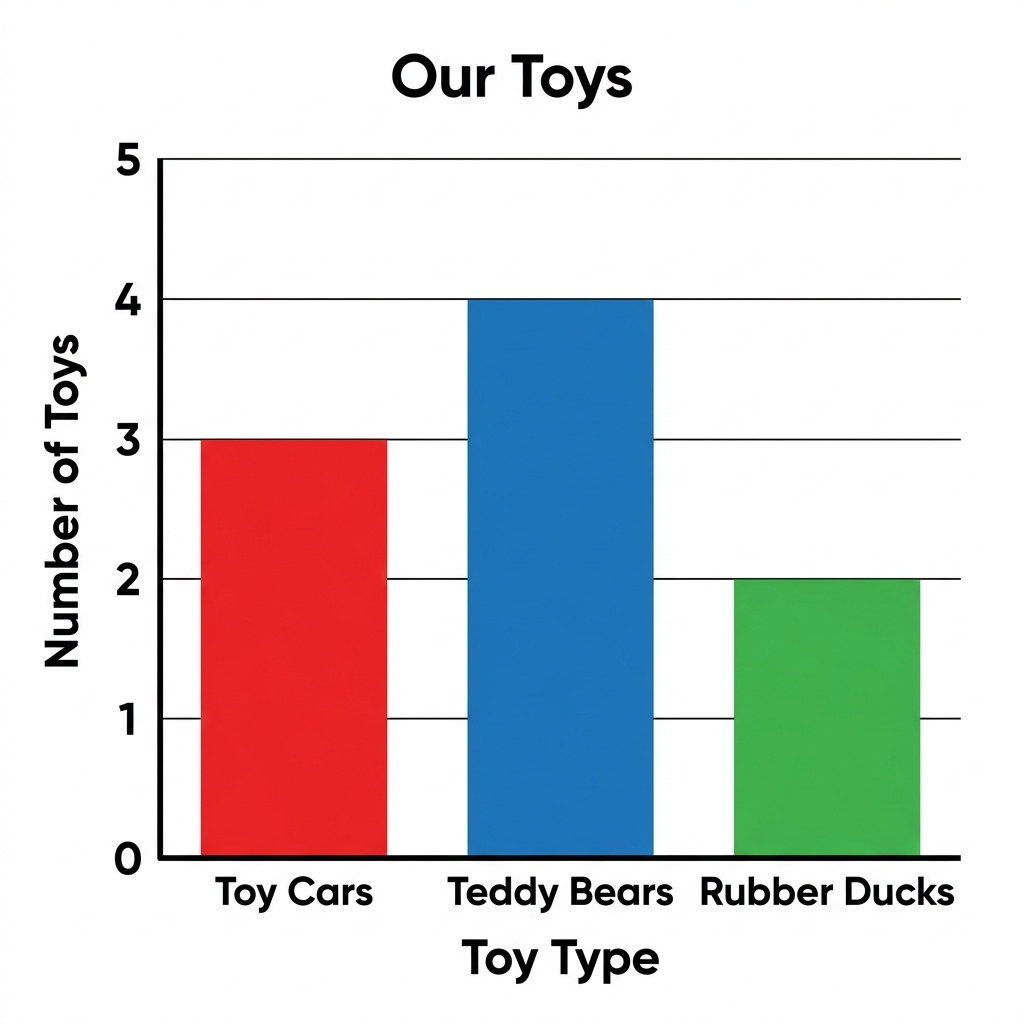
Finding Patterns in Charts, Teaches students to identify data trends within simple charts